

How to use
How to use Responder Atlas: Businesses and AED owners
Georgia SB 399 asks owners of AEDs to register them so 911 dispatchers can direct callers to them. Registering in Responder Atlas is free and takes about 5 minutes. Your county's fire department and 911 center review each registration before dispatchers can see it.
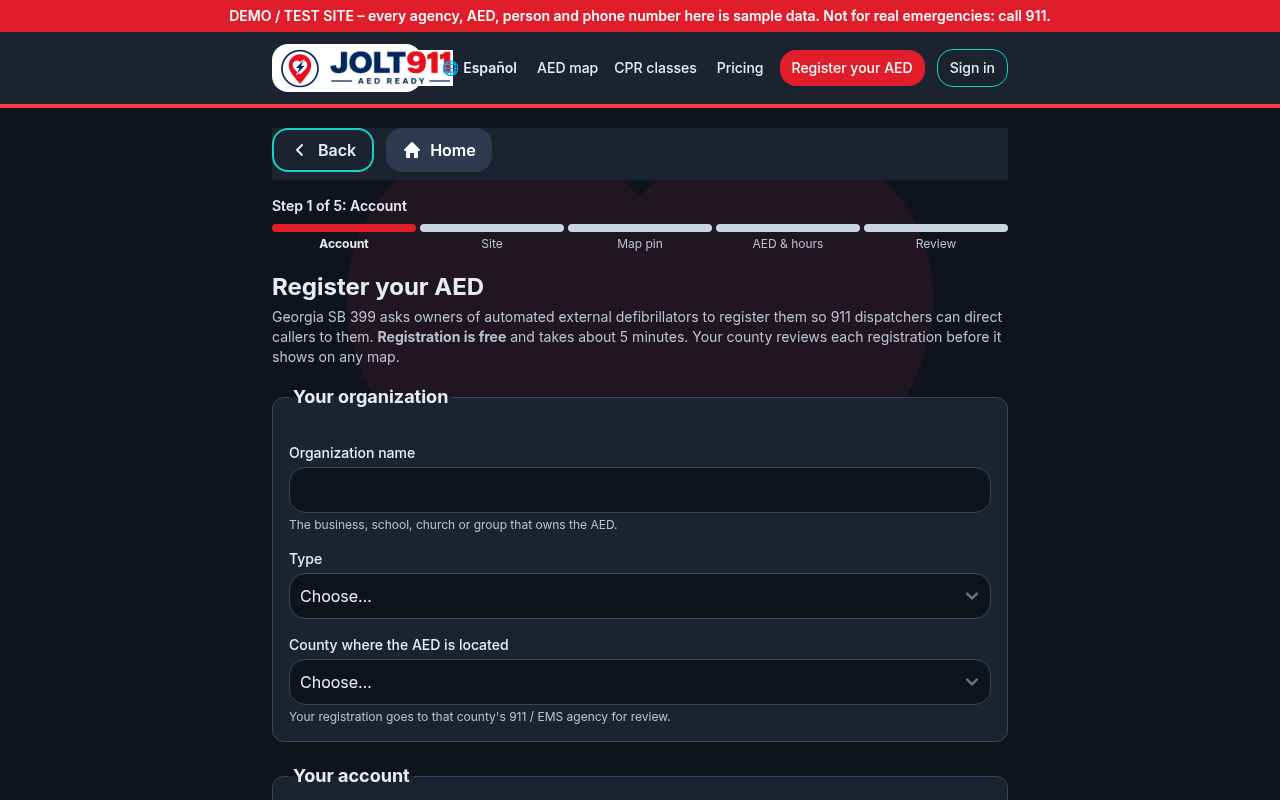
1. Register your organization
- Press "Register your AED" at the top of any Responder Atlas page.
- Under "Your organization", enter the organization name, choose its type and choose the county where the AED is located. Your registration goes to that county's fire department and 911 center.
- Under "Your account", enter your name, email, phone and a password (at least 10 characters), then press "Create account & continue".
- Confirm your email with the link we send you. Status updates go to that address.
- Registration is free. Optional upgrades start at $25/month; see Pricing to compare plans.
- Forgot your password? Choose "Forgot password?" on the sign-in page to get a reset link by email.
- To use Responder Atlas in Spanish, press "Español" at the top of the page. Responder Atlas remembers your choice.
 (opens full size)
2. Add an AED and pin its location
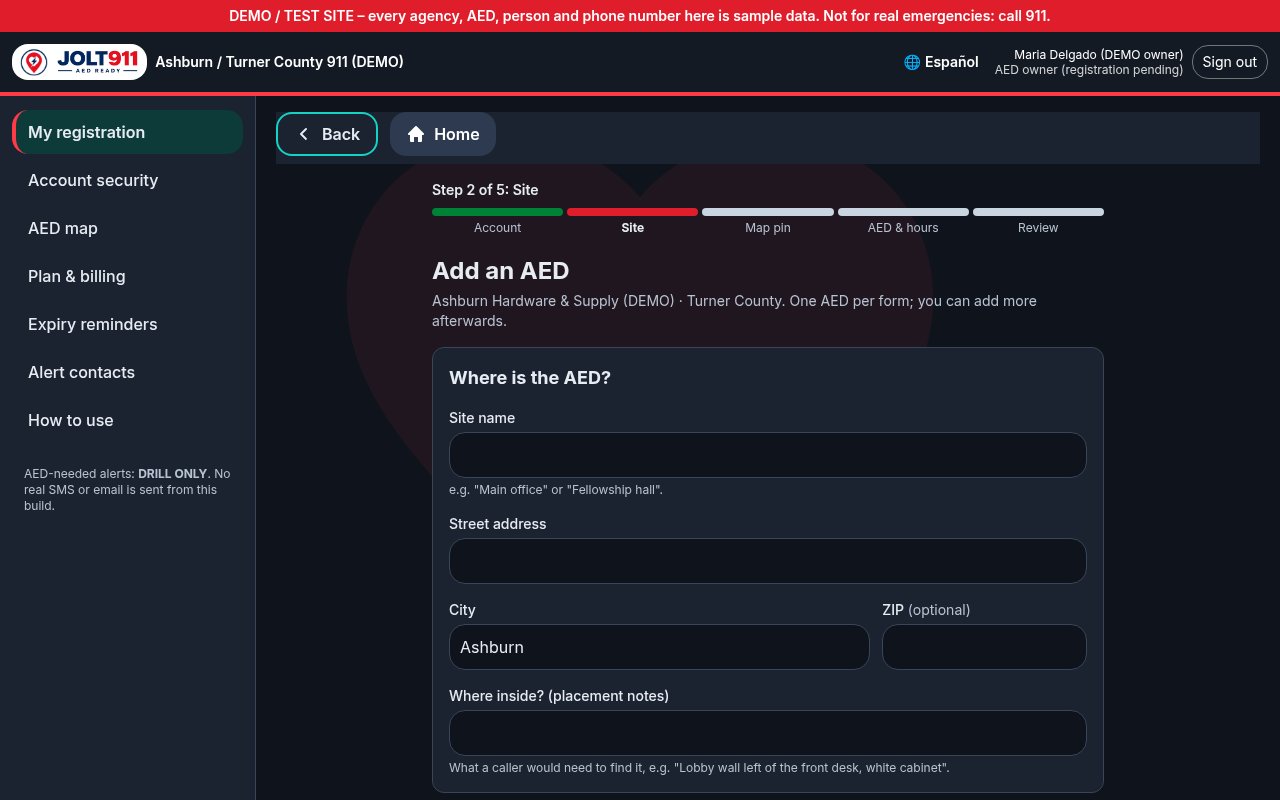
- On My registration, press "+ Add AED". There is one AED per form; you can add more afterwards.
- Where is the AED? Enter the site name, street address, city and ZIP, and the placement notes: what a caller would need to find it, for example "Lobby wall left of the front desk, white cabinet".
- Pin the exact spot: press "Find address on map", then drag the pin (or tap the map) to the door closest to the AED.
- AED details & hours: enter the make, model and serial number, the pads and battery expiration dates (from the label or manual), and optionally the unit's end of life or warranty end. You can add a photo of the AED in its spot; location data is removed from the photo when it's saved.
- Choose when someone can reach the AED: Open 24/7, or the opening and closing times for each day.
- For 911 dispatchers only (never public): add your main business line, an after-hours contact who can open the building, and any cabinet or door access code. Dispatchers call the main line while you're open and the after-hours contact when you're closed. All are optional; the access code is stored encrypted.
- Enter the site contact (name, phone, email) for the county, then save.
 (opens full size)
3. Review, submit and get approved
- Press "Review & submit", check every AED, tick the confirmation box and submit.
- Your county reviews it. Pending AEDs are not shown on the public map or to dispatchers until approved, but you can still edit them.
- If the county asks for changes, you'll see their note on My registration. Update the AED(s) and submit again.
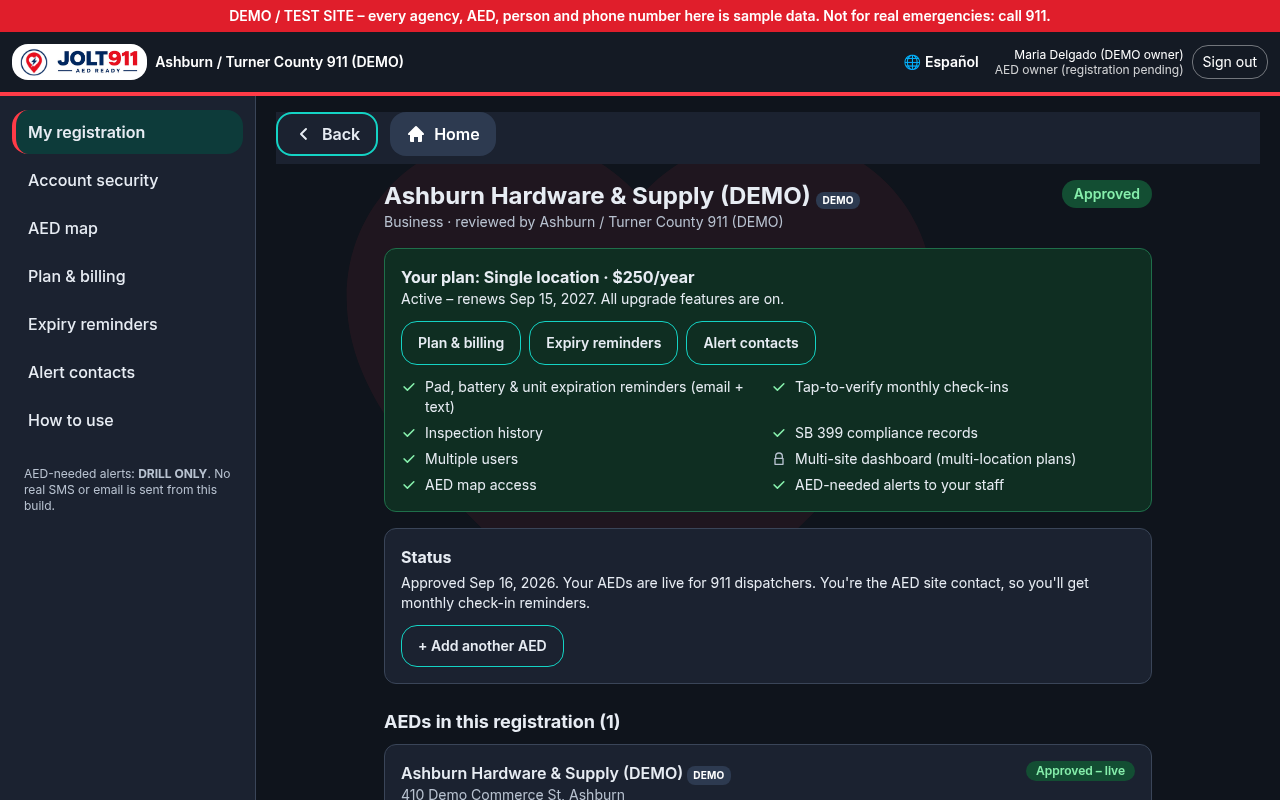
- Once approved, your AEDs are live for 911 dispatchers and you are the AED site contact.
 (opens full size)
4. Edit or remove an AED
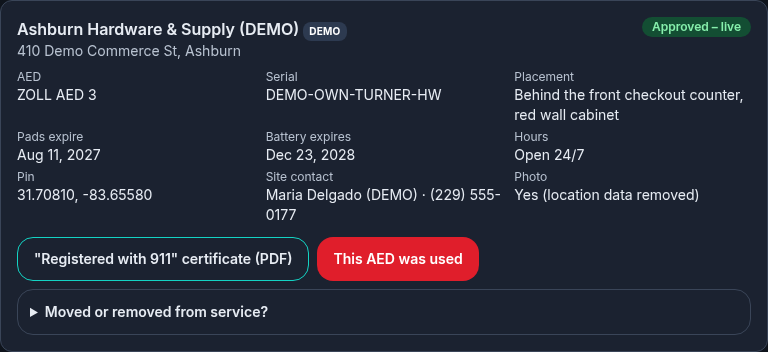
- On My registration, each AED card shows its address, make and model, serial, placement, pads and battery dates, hours, map pin and site contact.
- Press Edit to change anything while your registration is still being reviewed. After approval, use "Moved or removed from service?" on the AED card (see below).
- Press Remove to take a not-yet-approved AED off your registration.
 (opens full size)
5. Keep it ready: pads, batteries and monthly checks
- Keep the pads and battery expiration dates up to date whenever you replace them (Edit the AED).
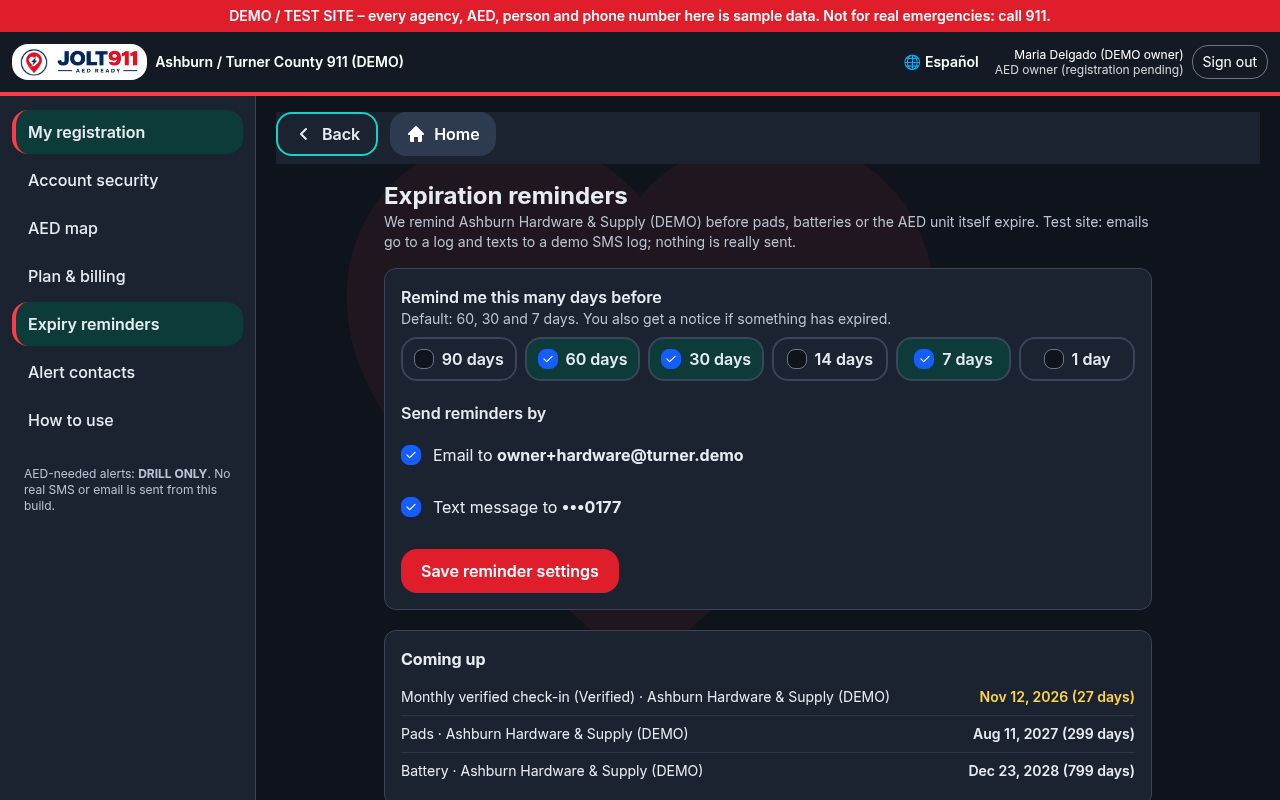
- Expiry reminders (in the menu): choose how many days before to be reminded (default 60, 30 and 7 days) and whether by email, text or both. You also get a notice if something has expired. Reminders are part of the paid plans; on Free Registration none are sent.
- "Coming up" lists each AED's next pads, battery and unit dates.
- Monthly check (paid plans): open "My live AEDs & check-ins", choose the AED and use "Check in this AED now", or scan the QR label on the AED. Tick the checklist and pick a result: "Pass – here and ready", "Possibly moved" or "Problem".
- "Possibly moved" sends the AED to the 911 agency for review. "Problem" (or an unchecked item) marks it Out of service.
- Print a QR label from the AED's page ("Print QR label", 4 × 3 in.) and stick it on or next to the cabinet so staff can check it each month.
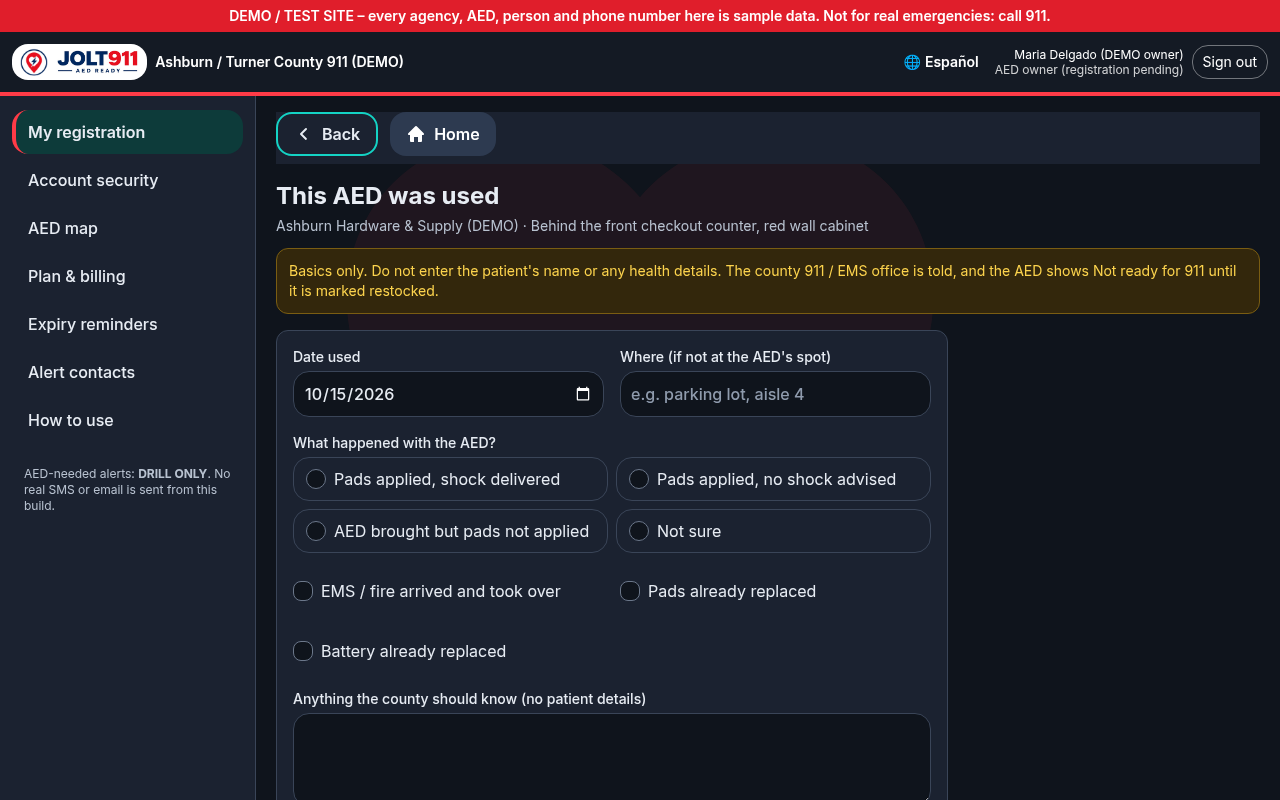
- If the AED is used, press "This AED was used". It goes Out of service until you enter the new pads and battery dates and press "Back in service".
- Get the green "Verified ready this month" badge: on your monthly check, tick every item and add two photos, one of the status light and one of the pads (sealed and in date). Dispatchers see the badge, and verified AEDs are listed first.
- Verification lasts 31 days. After that it shows as due (amber), and after 45 days as overdue (red). The Reminders page and your reminder messages tell you when it is due.
 (opens full size)
6. If your AED is used, moved or removed
- After an AED is used, press "This AED was used" on its card. Enter the date, where it was used if not at its usual spot, what happened (shock delivered, no shock advised, pads not applied, not sure), whether a fire or ambulance crew took over, and whether the pads and battery were already replaced.
- Do not enter the patient's name or any health details. Responder Atlas does not collect them.
- The county fire department and 911 center are told right away, and the AED shows Not ready to dispatchers until you restock it.
- When the new pads (and battery, if needed) are in, enter their expiration dates and press "Restocked – back in service".
- AED moved to a new spot? Open "Moved or removed from service?", type the new exact spot and press "Save new spot". The county confirms the new spot.
- AED gone for good (replaced, sold, broken, business closed)? Pick a reason and press "Remove from service". It leaves the map and 911 lookups.
 (opens full size)
7. Your "Registered with 911" certificate
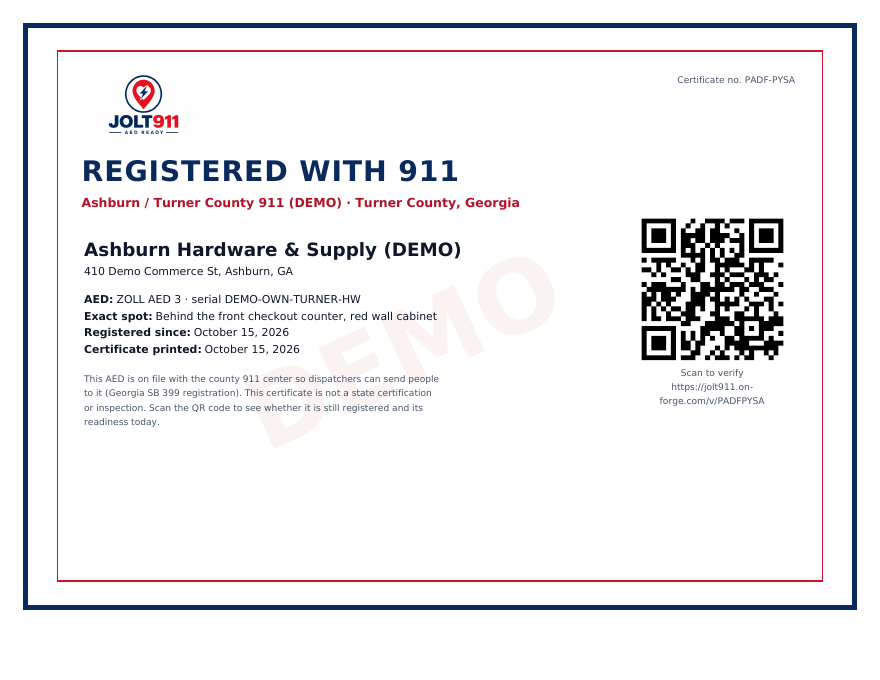
- Once your AED is approved, press the "Registered with 911" certificate (PDF) button on its card to download a printable certificate.
- The certificate shows your county 911 center, the AED's site, make, model, serial and spot, and the date it was registered.
- Its QR code opens a public page that shows whether the AED is still registered and how ready it is today. A removed AED's certificate shows "Removed from service".
- The certificate shows that the AED is registered with the county 911 center (Georgia SB 399). It is not a state certification or an inspection.
- The public can also tap "Confirm this AED / Report a problem" on the AED map or scan the small QR on your AED's label. Reports go to the county's to-do list, and the county may contact you.
 (opens full size)
8. Alert contacts (AED-needed alerts)
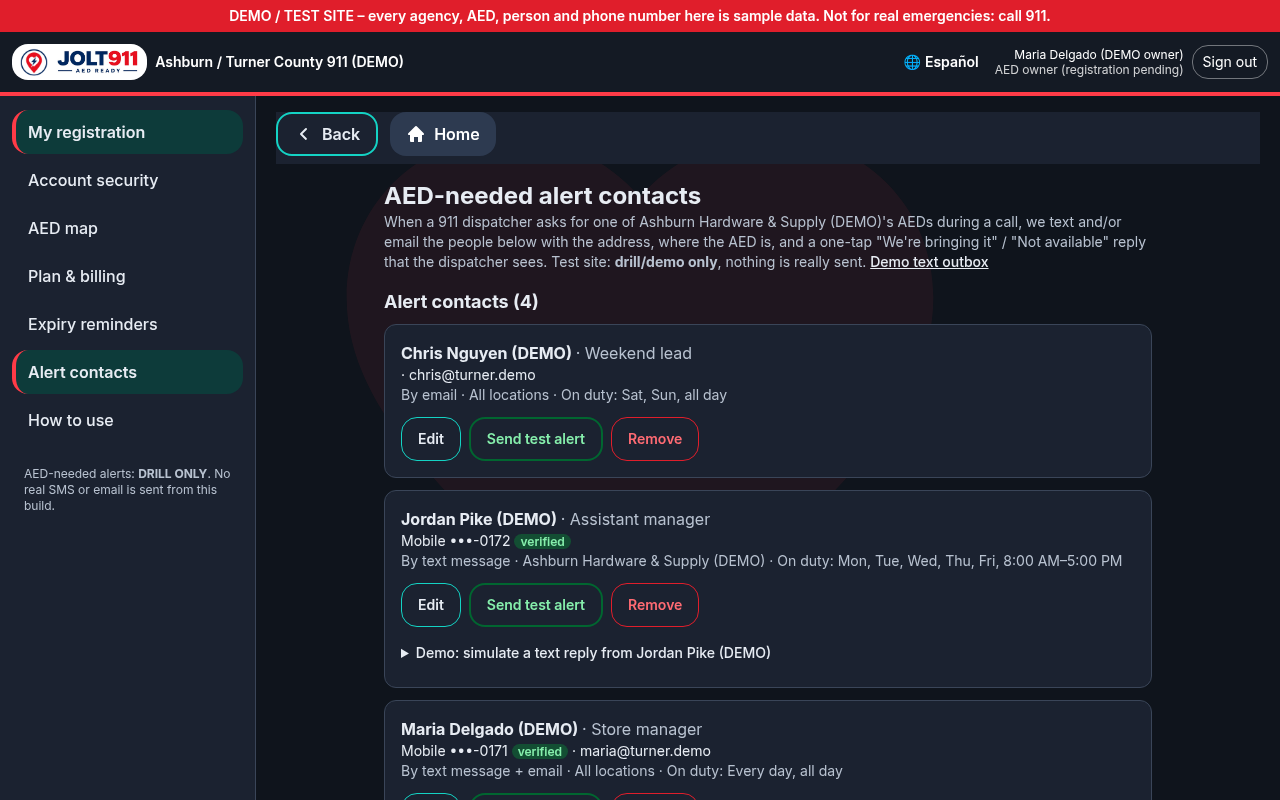
- With a Single location or Multi-location plan, add alert contacts: the staff who should be told when a 911 dispatcher asks for your AED during a call.
- Alert contacts (in the menu): enter a name, optional role, mobile phone and/or email, how to send alerts, which AEDs (all locations or only some) and optional on-duty hours.
- Choose each contact's alert language (English or Español). Their alert texts and emails are written in that language.
- Press "Text a verify code" and enter the 6-digit code. Texts go only to verified mobile numbers, and anyone can reply STOP to opt out.
- Press "Send test alert" next to a contact to make sure they get it. Test alerts are clearly marked TEST, never reach dispatchers, and are limited to 3 every 10 minutes. Until texting is connected, they are saved in the alert outbox and are not sent.
- Alerts go to one contact at a time, in the order of your list. If nobody taps "We're bringing it" within 60 seconds (or they tap "Not available"), the next contact gets it. When the list runs out, the dispatcher's request moves to the next-nearest verified AED. Alert texts are marked PRIORITY.
- When an alert comes in, staff see the call address and where the AED is, and tap "We're bringing it" or "Not available". The dispatcher sees the reply.
- Only go if it's safe and obey traffic laws. Hand the AED to whoever is with the patient and follow the dispatcher.
- On Free Registration, 911 still sees your AEDs, but staff alerts are not sent.
- An alert includes the scene address and a map link. Open the link in the message to reply: "Bringing it", "Not available", or "I've arrived with the AED".
- After you tap "Bringing it", you can tap "Share my ETA once". Your phone asks permission one time, and only a rough ETA is sent to the dispatcher. Your location is not stored or tracked.
 (opens full size)
9. CPR and AED classes
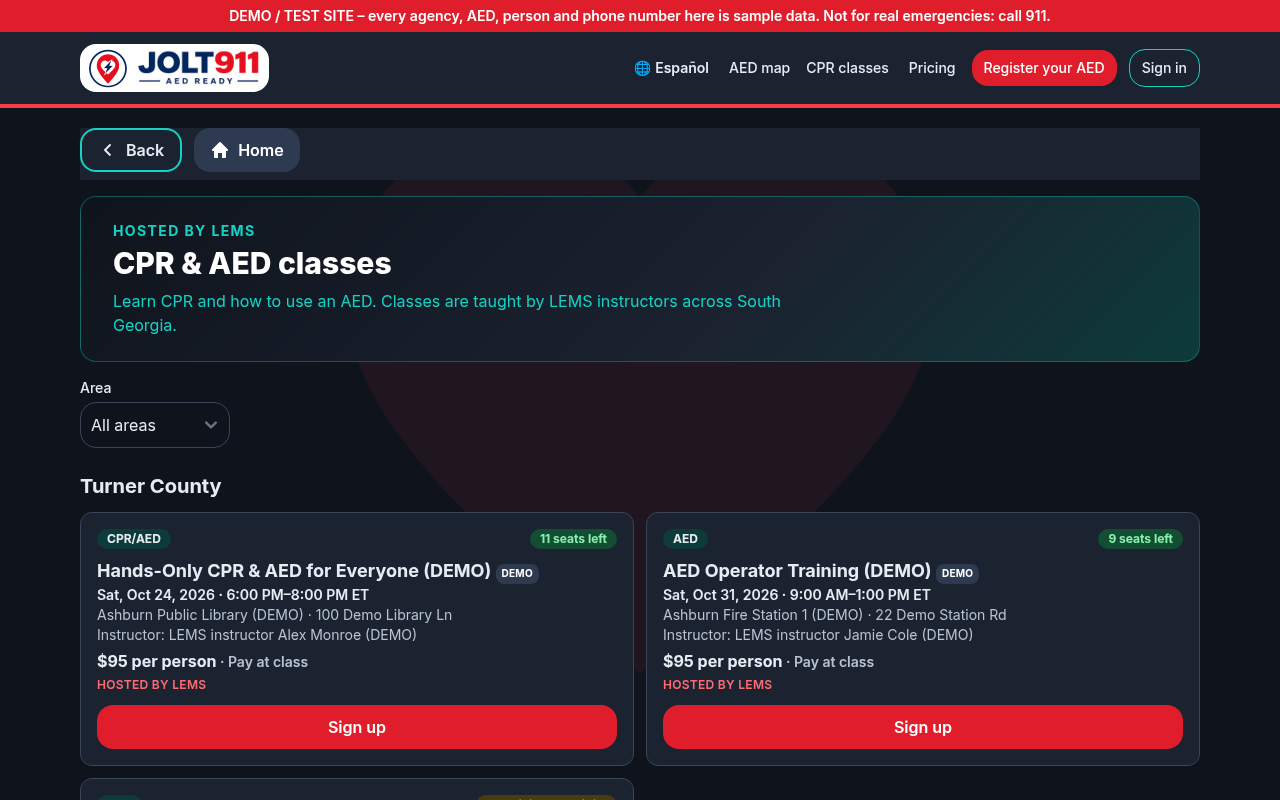
- Open "CPR classes" at the top of any page to see upcoming CPR and AED classes taught by LEMS instructors.
- Choose your area to filter the list, then open a class to see the type, date, time, place, instructor, cost and seats left. Paid classes are paid at the class (cash or card); no online payment is taken.
- Fill in the sign-up form on the class page. If the class is full, new sign-ups join the waitlist.
- Some classes also show a QR code that opens the same sign-up page, handy for sharing or flyers.
 (opens full size)
Download: PDF · Word (DOCX)